In the digital era, efficiently managing and organizing a vast number of files has become a necessity for both individuals and organizations. As the volume of digital content grows, so does the complexity of keeping it well-organized. This is where automation can play a crucial role. Python, with its powerful libraries and straightforward syntax, offers a simple yet effective solution for automating file organization tasks. In this article, we’ll explore a Python script designed to automatically sort files into directories based on their extensions, using a predefined mapping of file extensions to target directories.
The Challenge of Manual File Organization
Manually sorting and organizing files can be a tedious and time-consuming task, especially when dealing with a large number of files across various formats. The process involves creating directories, identifying file types, and moving each file to its designated place. This not only consumes valuable time but also increases the risk of errors, such as misplacing files or inconsistent naming conventions.
Automating File Organization with Python
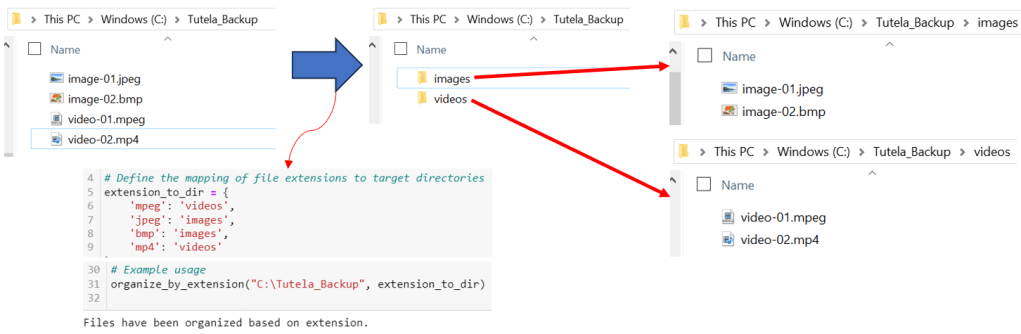
To address this challenge, we present a Python script that automates the process of organizing files by their extensions. The script uses a dictionary to map file extensions to their corresponding target directories and then iterates through all files in a specified directory, moving each file to its designated folder based on its extension.
Below is the script:
import os

import shutil


# Define the mapping of file extensions to target directories

extension_to_dir = {

    'mpeg': 'videos',

    'jpeg': 'images',

    'bmp': 'images',

    'mp4': 'videos'

}


def organize_by_extension(directory, extension_mapping):

    for file in os.listdir(directory):

        file_path = os.path.join(directory, file)

        if os.path.isfile(file_path):

            # Extract the file extension

            file_extension = file.split('.')[-1]

            # Check if the file extension is in the mapping

            if file_extension in extension_mapping:

                # Get the target directory from the mapping

                target_dir_name = extension_mapping[file_extension]

                target_dir = os.path.join(directory, target_dir_name)

                # Create the target directory if it doesn't exist

                if not os.path.exists(target_dir):

                    os.makedirs(target_dir)

                # Move the file to the target directory

                shutil.move(file_path, os.path.join(target_dir, file))

    print("Files have been organized based on extension.")


# Example usage

organize_by_extension("C:\Tutela_Backup", extension_to_dir)Output:
How the Script Works
- Import Necessary Libraries: The script begins by importing the os and shutil modules, which provide functionalities for interacting with the file system and performing file operations, respectively.
- Define Extension to Directory Mapping: A dictionary named extension_to_dir is defined, mapping file extensions (e.g., ‘mpeg’, ‘jpeg’) to the names of the target directories (e.g., ‘videos’, ‘images’) where files of those types should be moved.
- The ‘organize_by_extension’ Function: This function takes two parameters: the path to the directory containing the files to be organized (directory) and the extension-to-directory mapping (extension_mapping). It then performs the following steps for each file in the directory:
- Checks if the current item is a file.
- Extracts the file’s extension.
- Looks up the extension in the mapping to find the corresponding target directory.
- Creates the target directory if it doesn’t exist.
- Moves the file to the target directory.
- Execution and Output: After organizing the files, the script prints a message indicating that the files have been successfully organized based on their extensions.
Conclusion
Automating file organization not only streamlines the management of digital content but also enhances productivity and reduces the potential for errors. By leveraging Python scripts like the one discussed in this article, individuals and organizations can achieve a more organized digital environment, allowing for easier access to files and more efficient workflows. Whether you’re a professional photographer looking to sort thousands of images or a business needing to organize various document types, this script provides a simple yet powerful tool for enhancing your file management system.
 Software Technology