In the digital age, managing a large number of files efficiently can become a daunting task, especially when it involves repetitive tasks like renaming files. Python, with its simplicity and powerful libraries, offers a straightforward solution for automating such tasks. This article delves into two practical Python scripts designed to simplify file management by automating the process of renaming files in bulk. Whether you’re organizing your personal files or managing a large dataset for work, these scripts can save you an immense amount of time and effort.
1. Renaming Files in Bulk
The first script we’ll explore is designed to rename all files within a specified directory to a sequential naming convention, while preserving their original file extensions. This approach is particularly useful for standardizing file names and improving the organization of your directories. Below is the script:
import os


def bulk_rename(folder_path, base_name):

    for count, filename in enumerate(os.listdir(folder_path), start=1):

        extension = os.path.splitext(filename)[1]

        new_filename = f"{base_name}_{count}{extension}"

        os.rename(os.path.join(folder_path, filename), os.path.join(folder_path, new_filename))


# Example usage

bulk_rename("C:\Tutela_Backup", "document")
Output:
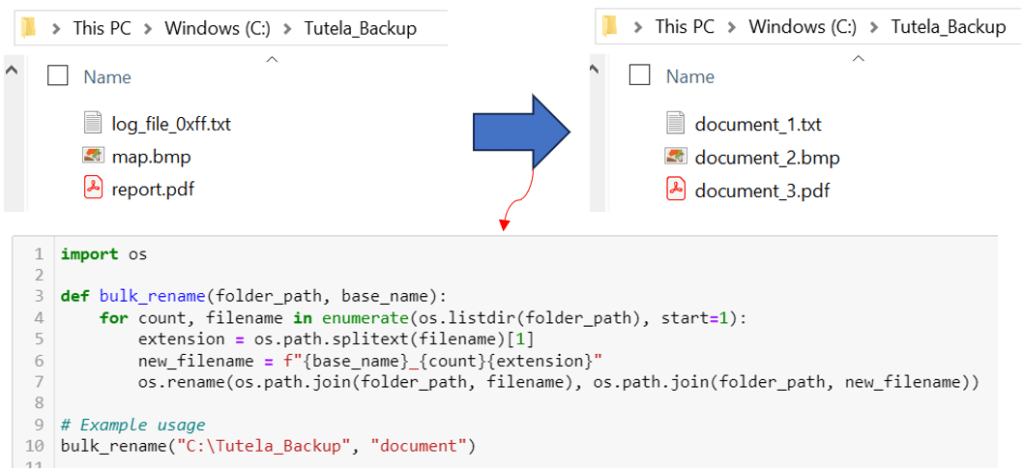
The provided Python script above is designed to automate the process of renaming files in bulk within a specified directory. It renames all files in the directory to a uniform naming convention, appending a sequential number to each file name while preserving the original file extensions. This can be particularly useful for organizing files, making them easier to navigate and manage. Here’s a breakdown of how the script works:
- Importing Required Module: The script starts by importing the os module (import os), which provides a way of using operating system-dependent functionality. The os module includes functions for interacting with the file system, such as renaming files and listing directory contents.
- Defining the ‘bulk_rename’ Function: This line defines a function named bulk_rename that takes two parameters: folder_path and base_name. folder_path is the path to the directory containing the files you want to rename, and base_name is the new base name that you want to give to each file.
- Looping Through Files in the Directory: The script uses a for loop to iterate over each file in the specified directory. os.listdir(folder_path) returns a list of the names of the entries in the directory given by folder_path. enumerate() is used to loop over the list of file names, providing a counter (count) that starts at 1 (as specified by start=1).
- Extracting File Extension and Constructing New Filename: For each file, the script extracts the file extension using os.path.splitext(filename)[1], which splits the filename into a tuple containing the name and the extension, and then selects the extension part. It then constructs a new filename using an f-string that combines the base_name, the counter (count), and the original file extension.
- Renaming the File: The script renames the file using os.rename(), which takes two arguments: the current file path and the new file path. os.path.join(folder_path, filename) constructs the full path to the current file, and os.path.join(folder_path, new_filename) constructs the full path to the renamed file.
Example Usage: This line demonstrates how to use the bulk_rename function. It specifies the path to the directory containing the files to be renamed (“C:\Tutela_Backup”) and the new base name for the files (“document”). When executed, the script will rename all files in the “C:\Tutela_Backup” directory to “document_1”, “document_2”, “document_3”, etc., preserving the original file extensions.
2. Renaming Files in Bulk Based on a Pattern
The second script targets a more specific need: renaming files based on a pattern. This is particularly useful when you need to batch process file names that contain a specific string or pattern and replace it with a new one. For example, you might want to replace a date or a project code in multiple file names with a new one.
import os


def rename_files(directory, old_pattern, new_pattern):

    for filename in os.listdir(directory):

        if old_pattern in filename:

            new_filename = filename.replace(old_pattern, new_pattern)

            os.rename(os.path.join(directory, filename), os.path.join(directory, new_filename))

            print(f"Renamed {filename} to {new_filename}")


# Example usage

rename_files("C:\Tutela_Backup", 'old', 'new')Output:
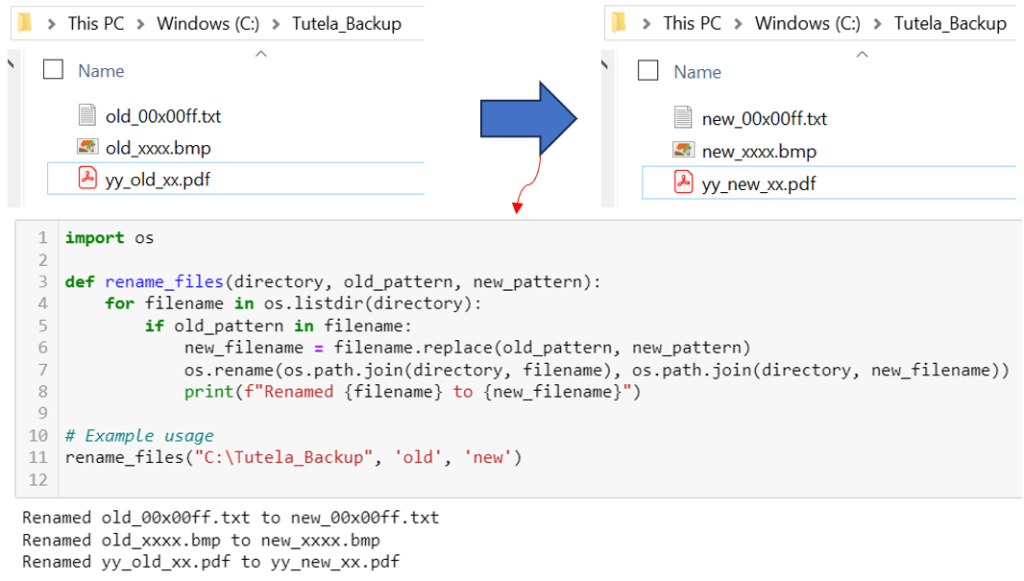
The script provided is a Python program designed to automate the process of renaming files within a specified directory. It specifically targets files whose names contain a certain pattern (referred to as old_pattern) and replaces this pattern with a new one (new_pattern). This can be particularly useful for batch updating file names that share a common naming convention that needs to be changed, such as date formats, project codes, or any other specific string of text within the file names. Here’s a detailed explanation of how the script works:
- Importing the Required Module: The script begins by importing the os module. This module provides a portable way of using operating system-dependent functionality like reading the file system and renaming files.
- Defining the ‘rename_files’ Function: This line defines a function named rename_files that takes three parameters: directory, old_pattern, and new_pattern. directory is the path to the folder containing the files you want to rename. old_pattern is the text pattern you are looking to find and replace in the file names. new_pattern is the text that will replace the old_pattern in the file names.
- Looping Through Each File in the Directory: The script uses a for loop to iterate over each file in the specified directory. os.listdir(directory) generates a list of the names of all the files and directories within directory.
- Checking for the Old Pattern in Each Filename: Within the loop, the script checks if the old_pattern string is present in the current filename. If the condition is true, it proceeds to rename the file.
- Creating the New Filename and Renaming the File: If the old_pattern is found in a filename, the script creates a new_filename by replacing old_pattern with new_pattern using the replace method. Then, it renames the file from filename to new_filename using os.rename(). The os.path.join(directory, filename) and os.path.join(directory, new_filename) are used to construct the full paths to the original and new filenames, respectively.
- Printing the Renaming Action: After renaming a file, the script prints a message to the console indicating that the file has been renamed, showing both the original and new file names.
- Example Usage: This line shows how to call the rename_files function, specifying the directory path (“C:\Tutela_Backup”), the old pattern to find in the file names (‘old’), and the new pattern to replace it with (‘new’). When executed, the script will search for all files in “C:\Tutela_Backup” that contain the string ‘old’ in their names and replace it with ‘new’, effectively renaming those files.
Conclusion
These Python scripts offer a glimpse into the power of automation for mundane tasks such as file renaming. By leveraging Python’s os module, you can significantly reduce the time and effort required to manage large sets of files, allowing you to focus on more critical aspects of your work or projects. Whether you’re dealing with a handful of files or thousands, incorporating these scripts into your workflow can enhance your productivity and bring a new level of organization to your file management practices.
 Software Technology