On this article we will access the SharePoint with Client ID and Client Secret so we don’t have to worry about user and password.
To download a file from SharePoint, you will be need 4 steps below:
- Install Office365-REST-Python-Client
- Create App User
- Grant Permission for App User
- Download file with Python
1. Install Office365-REST-Python-Client
Install Office365-REST-Python-Client using pip:
pip install Office365-REST-Python-ClientFor detail installation please refer to this link: GitHub – vgrem/Office365-REST-Python-Client: Microsoft 365 & Microsoft Graph Library for Python
2. Create App User
SharePoint App registration URL:
https://{TENANT}.sharepoint.com/sites/{YOURSITE}/_layouts/15/appregnew.aspxFrom the provided link, please accurately complete the information for your {TENANT} and {YOURSITE} before opening it in your browser.
When you open the link in your browser, you may encounter a notification that says ‘Sorry, you don’t have access.’ This means that you need to request access from the site’s creator by clicking the ‘Send’ button (refer to the picture below):

If your access request is approved by the administrator, you will receive an email as illustrated in the screenshot below, and then proceed to access the site’s page:

And now you can access the page from the process described above, but sometimes you may still need to ask the administrator to make it available for you to edit, as shown in the picture below:
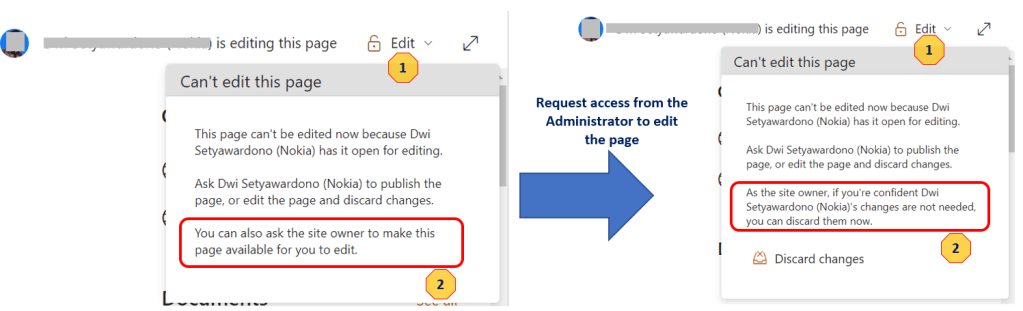
And now you can try accessing your ‘SharePoint App Registration URL’ again and it will take you to the setup page shown below:

Steps for SharePoint App Registration:
- Press the “Generate” button to obtain the Client ID and Secret codes.
- The “Title”, “App Domain”, and “Redirect URL” fields should be filled with the information on where your app will be used, but dummy information can also be used (and it works).
- Save the Client ID and Secret codes in a text file for later use.
- Finally, click “Create” then “OK”.
3. Grant Permission for App User
And now you can set up permissions for the App User by adding /_layouts/15/appinv.aspx after your site’s URL:
https://{TENANT}.sharepoint.com/sites/{YOURSITE}/_layouts/15/appinv.aspxCopy and paste the ‘Client ID’ that was saved when creating the App user, paste it into the ‘App ID’ field and press the ‘Lookup’ button. In the ‘Permission Request XML’ field, paste the XML below to give the App user the necessary permissions:
<AppPermissionRequests AllowAppOnlyPolicy="true">
<AppPermissionRequest Scope="http://sharepoint/content/sitecollection" Right="FullControl" />
</AppPermissionRequests>
Here the set up page:
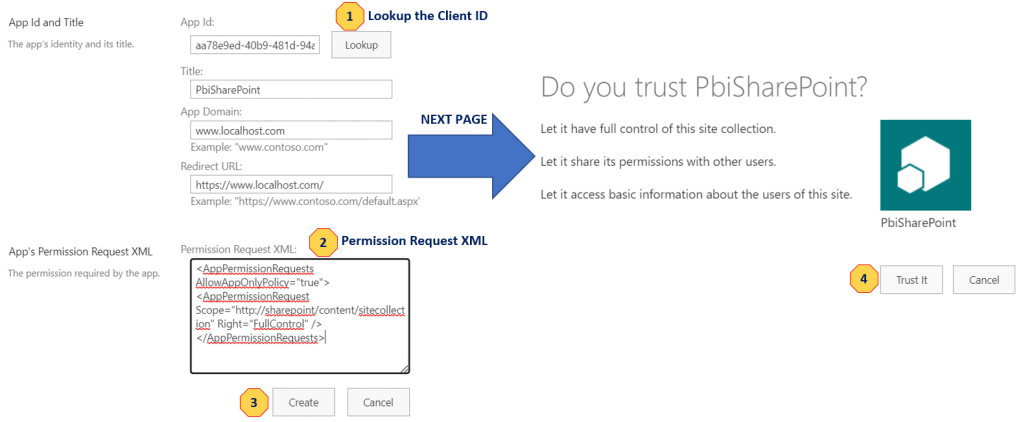
After that click “Create” => “Trust it” and now we have App user & Permission we need.
4. Download file with Python
And now you can download a file from SharePoint with Python with below script (but you need to change the correct {TENANT}, {YOURSITE}, and {YOUR_PATH_FILE}):
from office365.runtime.auth.authentication_context import AuthenticationContext
from office365.sharepoint.client_context import ClientContext
from office365.sharepoint.files.file import File

### Authentication ###
def sharepoint_auth(site_url, client_id, client_secret):
    auth = AuthenticationContext(site_url)
    auth.acquire_token_for_app(client_id, client_secret)

    ctx = ClientContext(site_url, auth)
    web = ctx.web
    ctx.load(web)
    ctx.execute_query()

    return ctx

### Create Link: Create download path from download URL ###
def sharepoint_file_path(file_link):
    if 'personal' in file_link:
        print("There's a 'personal' in your url.\nIf it's a sharepoint personal not a sharepoint site, please create the download parh from /personal/{YOUR MAIL}/Document/{Your Folder Name}/{Your File Name}")

    file_name = file_link.split('/')[-1]
    link = '/sites' + file_link.replace(file_name,'').split('sites')[-1]
    link += file_name.split('?')[0]

    return link

### Download a File ###
def shapoint_download(ctx, sharepoint_location):
    response = File.open_binary(ctx, sharepoint_location)
    if str(response.status_code)=='200':
        with open(local_location, 'wb') as local_file:
            local_file.write(response.content)
            print('Download OK File')
    else:
        print(f'Return with error code : {response.status_code}')
        print(f'Content of error : {response.content}')
        raise Exception('Cannot Download File')

##### Try to download a file from SharePoint and save it as my_file.rar #####
client_id = "aa78e9ed-40b9-481d-94aa-ccb40e6750e0"
client_secret = "7QlYBx/NlCZW4ZSi1x6y0zuTy31mXZ/M1S3Xcz9FQTU="
site_url = 'https://{TENANT}.sharepoint.com/sites/{YOURSITE}'

local_location = r'C:\my_file.rar'
file_link = r'https://{TENANT}.sharepoint.com/sites/{YOURSITE}/{YOUR_PATH_FILE}'
print(file_link)

ctx = sharepoint_auth(site_url, client_id, client_secret)
sharepoint_location = sharepoint_file_path(file_link)
shapoint_download(ctx, sharepoint_location) Software Technology