
A Comma Separated Values (CSV) is the simplest form of storing data in tabular form as a plain text file. And these files (CSV) are often used for data exchange between different applications or sometimes used as an input for data-processing to get an insight about the data and to visualize it.
Challenge
How to use Pandas to perform data processing on a CSV file with the following minimal requirements:
- Reading a CSV file
- Modify pandas DataFrame
- Save a CSV file
Solution
There are many ways to handle CSV files in Python, but the easiest way is to use Pandas library, why? Because after reading the CSV file with Pandas library, the CSV file will wrap in Pandas DataFrame that has many advantages compared to other data structures like list and array: you can do data-processing in a more simple way with DataFrame and make it possible to handle a huge dataset with hundreds of features and thousands of records.
The below code will accommodate all our challenges above:
import pandas as pd

csv_file = r'Samples\Sales_January_2019.csv'

#Read CSV file
df = pd.read_csv(csv_file)

#Modify pandas DataFrame
df['added_column'] = -1
df.loc[df['Order ID']=='141234', ['Purchase Address']] = '738 10th St, Los Angeles, CA 90001'

#Save/Write CSV file
df.to_csv(csv_file, index=False)
If you need a CSV file for the code above, you can download it from here.
Steps on the code above:
Step 1. Import Pandas library
import pandas as pdStep 2. Read CSV file (Load CSV file to pandas DataFrame)
csv_file = r'Samples\Sales_January_2019.csv'

#Read CSV file
df = pd.read_csv(csv_file)
Save Pandas DataFrame to df variable.
Step 3. Modify pandas DataFrame
#Modify pandas DataFrame
df['added_column'] = -1
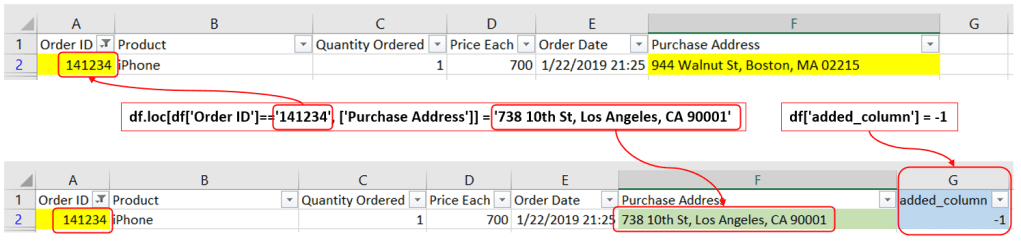
With this code, you will add a column to pandas DataFrame with the name is added_column and the values are -1.
And below code will select a row with ‘Order ID’ == ‘141234’ and then change the ‘Purchase Address to ‘738 10th St, Los Angeles, CA 90001’
df.loc[df['Order ID']=='141234', ['Purchase Address']] = '738 10th St, Los Angeles, CA 90001'Below is the result of two lines code above:
Step 4. Save/Write a CSV file
Use to_csv() to save to write a CSV file.
Syntax: DataFrame.to_csv(filename, sep=’,’, index=False)
**separator is ‘,’ by default.
index=False to remove the index numbers.
#Save/Write CSV file
df.to_csv(csv_file, index=False)
Conclusion
You just saw how easy to read, modify, and write a CSV file with Pandas library. I hope this post is informative and feel free to share it.
I usually create a class to wrap whatever I learn, to make it easier for me later on when I work on a project. I just need to copy the classes that I have created before and modify them a bit and then I can use them without taking time. And another advantage, of course, these classes will be easier to read and understand when I need them. The following CCsv class for the above case (with the same result):
import pandas as pd

class CCsv:
    def __init__(self, csv_file):
        self.file = csv_file

        self.dataframe = pd.read_csv(self.file)
        self.rows = self.dataframe.shape[0]
        self.cols = self.dataframe.shape[1]
        self.columnNames = self.dataframe.columns

    def addColumn(self, column_name, column_value):
        self.dataframe[column_name] = column_value
        self.cols = self.dataframe.shape[1]
        self.columnNames = self.dataframe.columns

    def save(self, csv_file=''):
        if csv_file=='':
            self.dataframe.to_csv(self.file, index=False)
        else:
            self.dataframe.to_csv(csv_file, index=False)


csv_file = r'Samples\Sales_January_2019.csv'

#Read CSV file
csv = CCsv(csv_file)

#Modify pandas DataFrame
csv.addColumn('added_column', -1)
csv.dataframe.loc[csv.dataframe['Order ID']=='141234', ['Purchase Address']] = '738 10th St, Los Angeles, CA 90001'

#Save/Write CSV file
csv.save()
If you need to read an Excel file you can refer to the below post:
 Software Technology