You can toggle the filter of PivotTable on and off from VBA code and change the value to whatever you like and “Refresh” the PivotTable. Here is how you can do it:
Create a Pivot Table in VBA
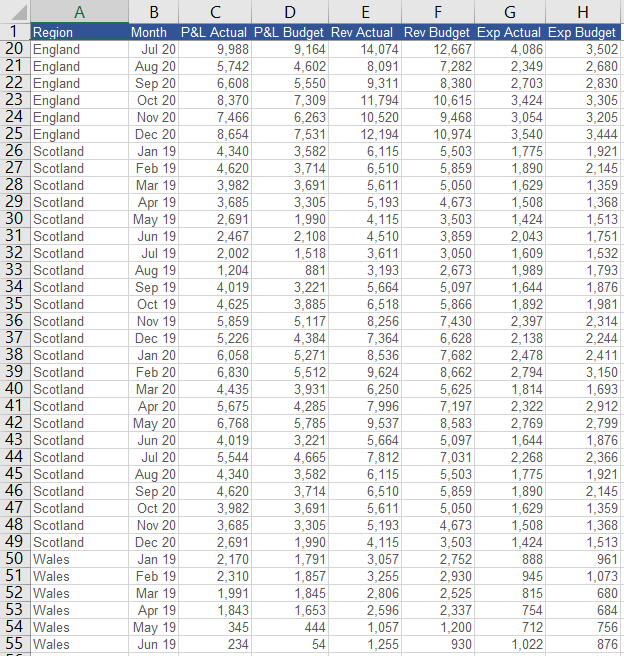
Let’s say you have below data sample:
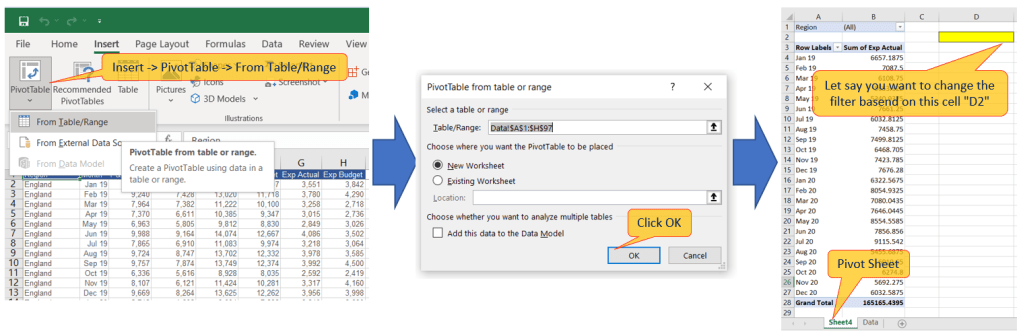
From excel data above create a pivot table “Insert -> PivotTable -> From Table/Range”:
Create VBA code to update the PivotTable filter
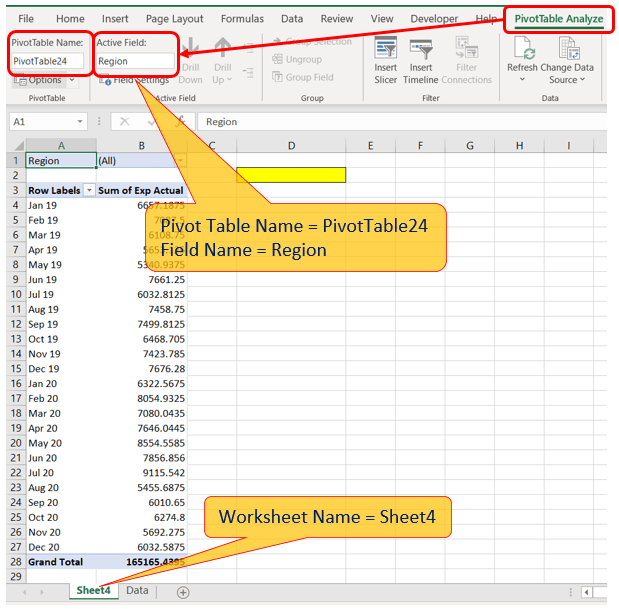
From picture above find worksheet, PivotTable and Active Field name. First go to “PivotTable Analyze à PivotTable | Active Field” and you’ll find all names you need:
- Worksheet Name = Sheet4
- PivotTable Name = PivotTable24
- Active Field Name = Region
Next step, right-click the pivot table sheet name à View Code, as below:
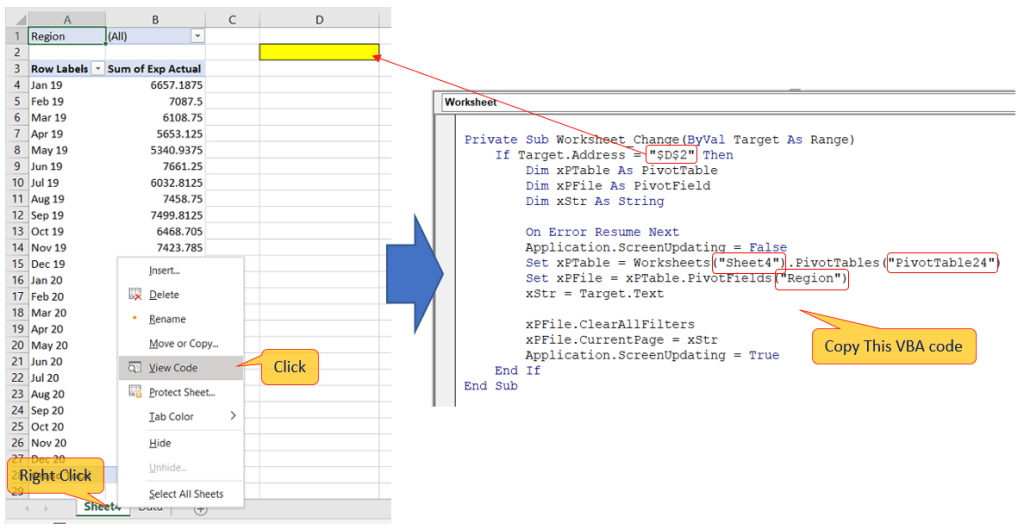
Copy below VBA code:
Private Sub Worksheet_Change(ByVal Target As Range)
    If Target.Address = "$D$2" Then
        Dim xPTable As PivotTable
        Dim xPFile As PivotField
        Dim xStr As String

        On Error Resume Next
        Application.ScreenUpdating = False
        Set xPTable = Worksheets("Sheet4").PivotTables("PivotTable24")
        Set xPFile = xPTable.PivotFields("Region")
        xStr = Target.Text

        xPFile.ClearAllFilters
        xPFile.CurrentPage = xStr
        Application.ScreenUpdating = True
    End If
End Sub
And now you can change the value on the cell (“D2”) and your PivotTable filter will refreshed to follow your input:

You can modify above VBA code to update PivotTable if click a button, select a value from List Box, select a value from combo box, etc.
 Software Technology